Connect ThunderHub to a Voltage LiTD Node
This guide covers connecting a self-hosted ThunderHub instance to a Voltage Lightning node. Voltage nodes run litd under the hood, so ThunderHub can connect using the litd account type to get full node management including Taproot Assets support.
Works with both Mainnet and Mutinynet (signet-based testnet) nodes on Voltage.
Voltage offers a built-in ThunderHub instance for each node, but it currently
runs an older version of ThunderHub (v0.13.22) which does not support
Taproot Assets or the litd connection type. This guide is for running your
own ThunderHub instance (v0.15.5+) to get full litd and Taproot Assets
support. Once Voltage updates their hosted ThunderHub, you can switch to using
their instance if you prefer.
Prerequisites
- A Voltage account (app.voltage.cloud )
- A Voltage Lightning node (Standard tier or above)
- ThunderHub v0.15.5 or later (the
latestDocker tag works) - Docker installed (for running ThunderHub using Docker)
You can also run ThunderHub using Node.js if you prefer, but Docker is simpler for most users
1. Create a Node on Voltage
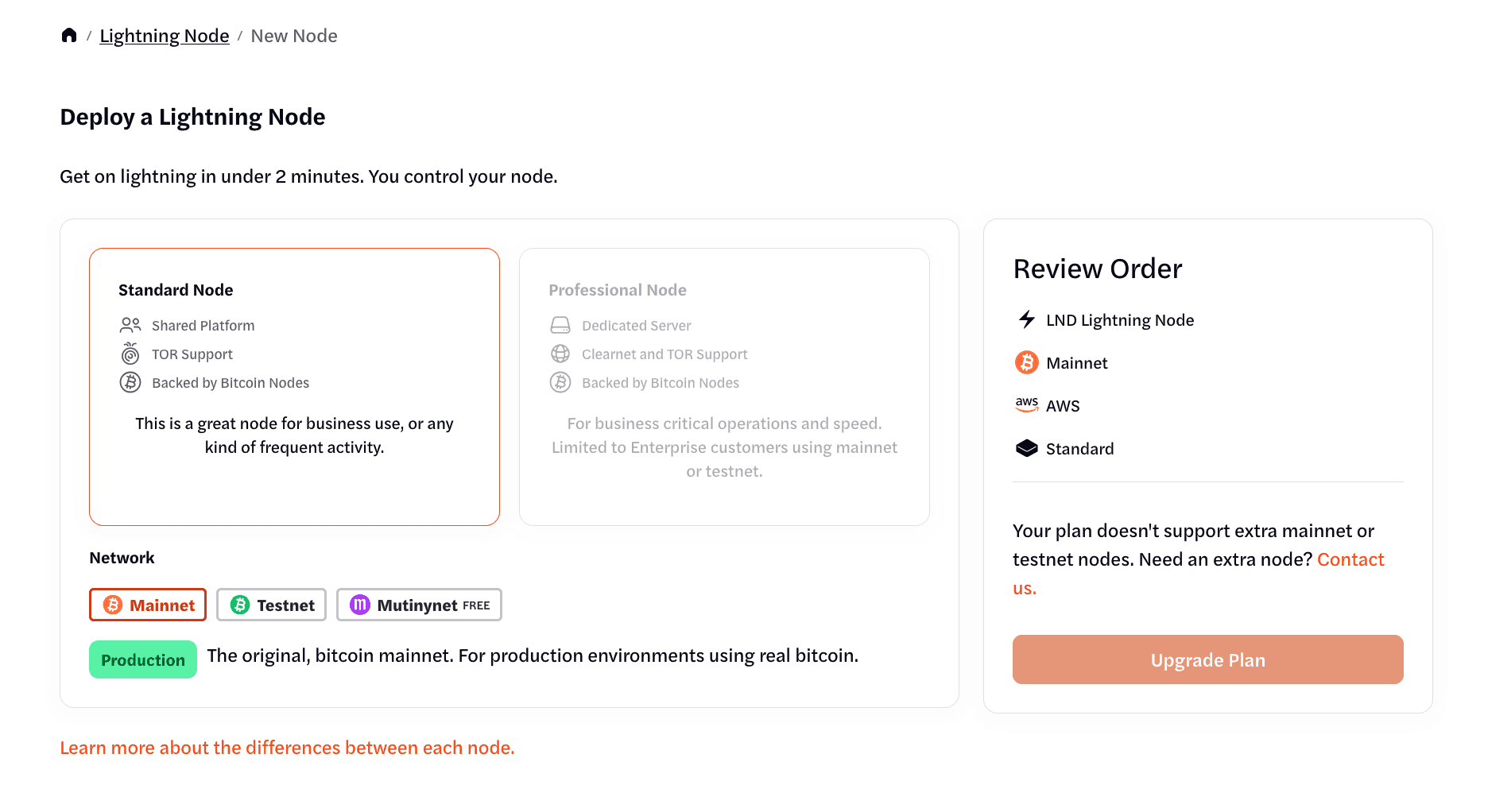
If you don’t have a node yet, follow these steps to create one on Voltage:
-
Log into app.voltage.cloud and click New Node → Standard/Professional Node.
-
Choose a network: Mainnet or Mutinynet.
-
Enter a node name and set an unlock password.
-
Wait for the node to deploy (~2 minutes).
-
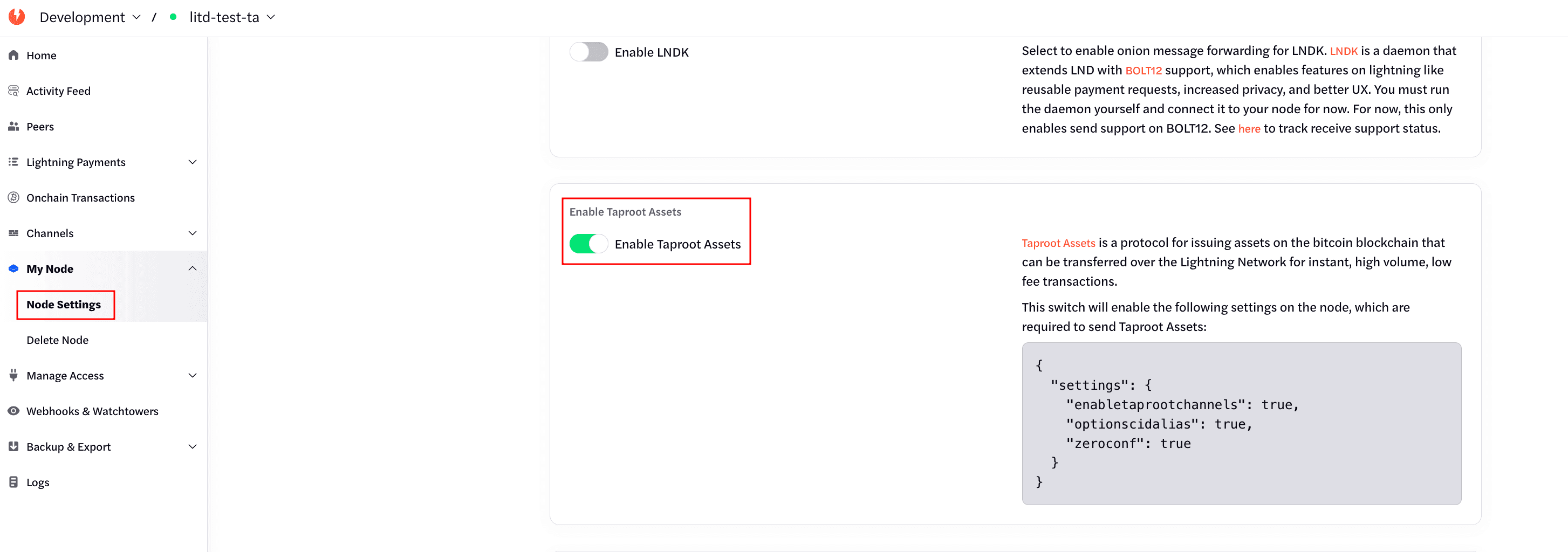
Once the node is running, enable Taproot Assets in the node settings. See the screenshot below for the toggle location.
-
Configure a price oracle so your node can trade Taproot Assets. In Node Settings, set the price oracle URL to:
- Mainnet:
rfqrpc://price-oracle.amboss.tech:443 - Mutinynet:
rfqrpc://price-oracle-dev.amboss.tech:443
See the Price Oracle guide for more details and alternative configurations.
- Mainnet:
Mutinynet is a signet-based test environment — channels open in ~30 seconds and you can get free test coins from the Voltage dashboard. It’s ideal for testing before moving to mainnet.
2. Get Your Connection Details
You need two pieces of information from the Voltage dashboard:
Server URL
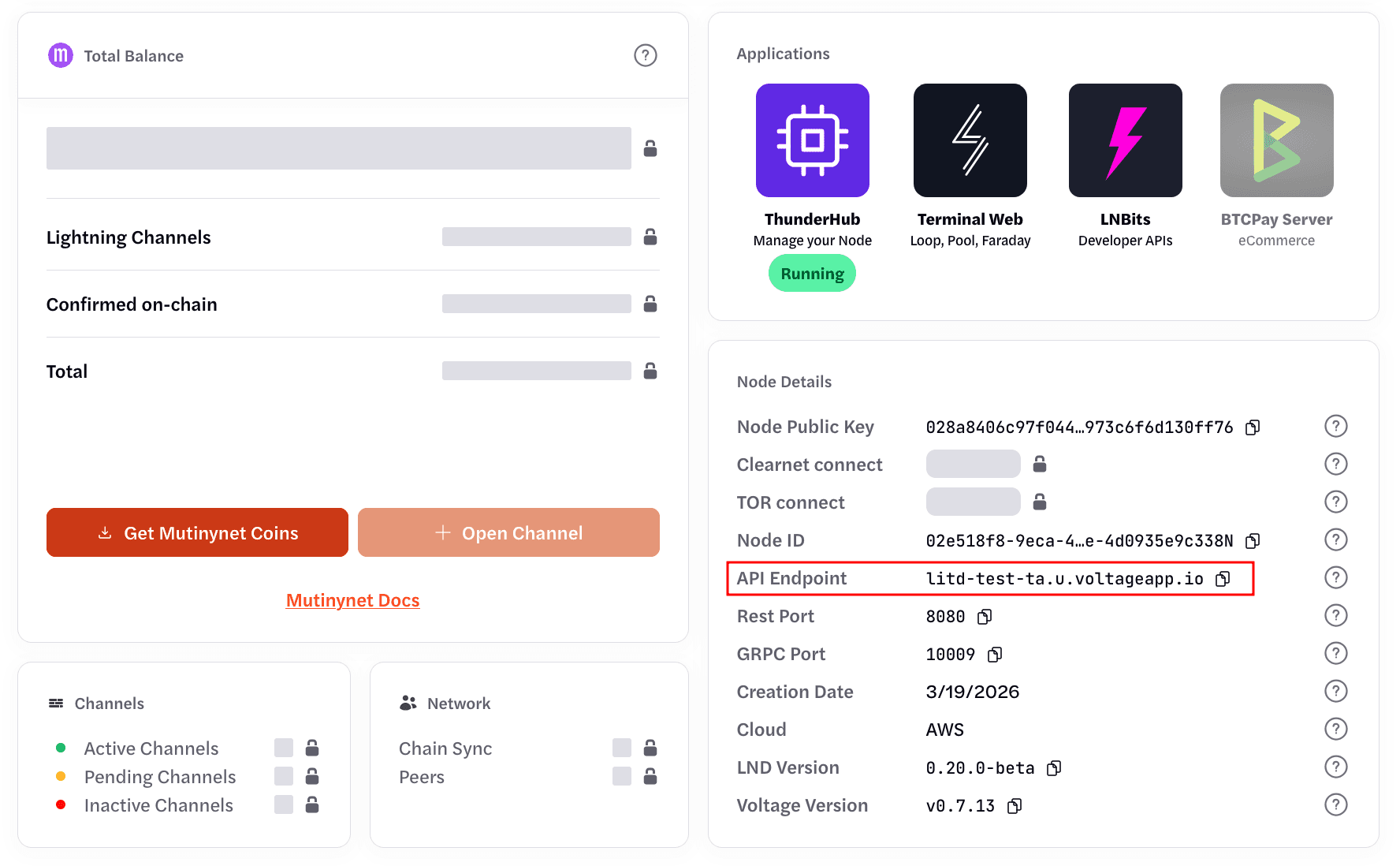
Find your node’s API endpoint on the node details page. The format is:
| Network | URL Pattern |
|---|---|
| Mainnet | <node-name>.m.voltageapp.io:443 |
| Mutinynet | <node-name>.u.voltageapp.io:443 |
The port is 443 (standard HTTPS), not 10009 or 8443. Voltage terminates TLS with a CA-signed certificate, so you do not need to download or configure a TLS certificate.
Superadmin Macaroon (for Taproot Assets)
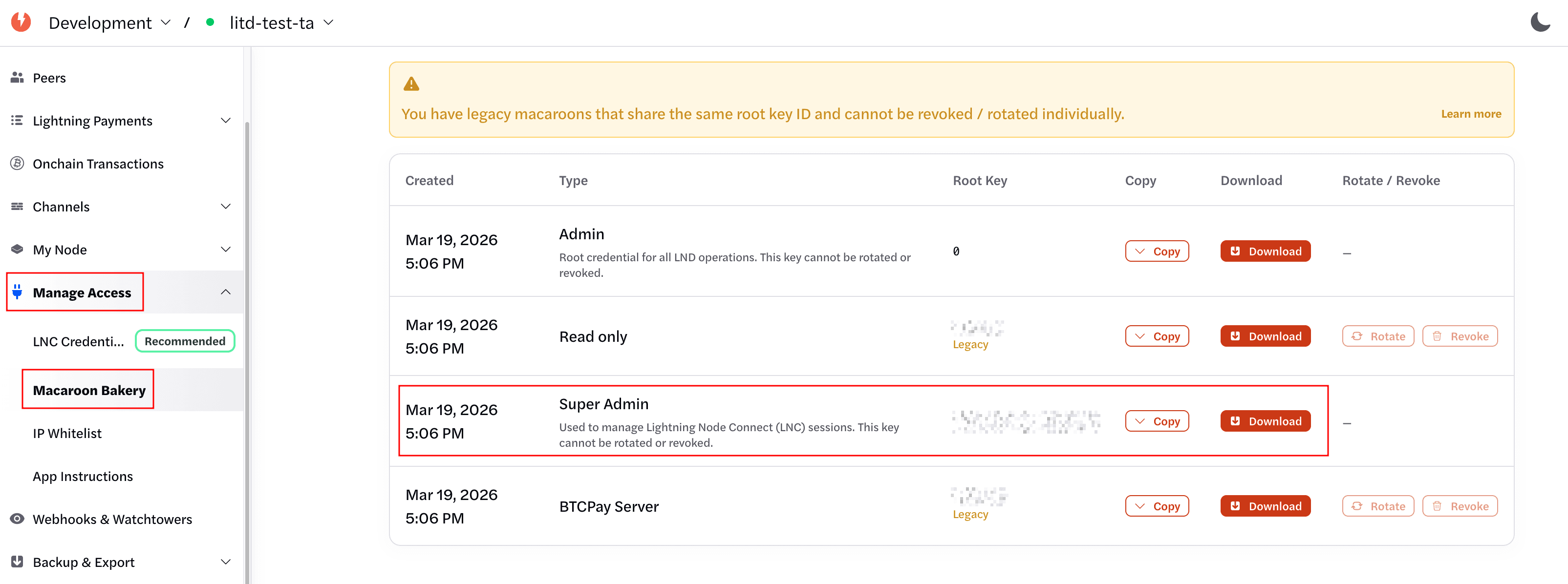
- Navigate to your node’s page on the Voltage dashboard.
- Go to Manage Access → Macaroon Bakery.
- Bake and download a superadmin macaroon.
- Save the file to a known location on the machine running ThunderHub (e.g.,
./voltage/superadmin.macaroon).
You need a superadmin macaroon (not just admin) to access all functionality offered by litd.
3. Configure ThunderHub
Create a thubConfig.yaml file:
Mainnet
masterPassword: 'your-secure-password'
accounts:
  - name: 'Voltage Mainnet'
    type: litd
    serverUrl: '<node-name>.m.voltageapp.io:443'
macaroonPath: '/data/voltage/superadmin.macaroon'Key differences from a standard LND config:
- Macaroon path — Ensure the path inside the container matches where you downloaded the macaroon file.
type: litd— tells ThunderHub to use the litd connection mode.- No
certificatePath— Voltage uses CA-signed certificates, so no custom TLS cert is needed. - Port 443 — Voltage proxies the connection over standard HTTPS.
4. Run ThunderHub
docker run -d \
  --name thunderhub \
  -p 3000:3000 \
  -e ACCOUNT_CONFIG_PATH=/data/thubConfig.yaml \
  -v /path/to/thubConfig.yaml:/data/thubConfig.yaml:ro \
  -v /path/to/voltage:/data/voltage:ro \
  apotdevin/thunderhub:latest
Replace /path/to/thubConfig.yaml with the actual path to your config file, and /path/to/voltage with the directory containing your downloaded macaroon(s).
Docker Compose
services:
  thunderhub:
    image: apotdevin/thunderhub:latest
    restart: unless-stopped
    ports:
      - '3000:3000'
    environment:
      - ACCOUNT_CONFIG_PATH=/data/thubConfig.yaml
    volumes:
      - ./thubConfig.yaml:/data/thubConfig.yaml:ro
      - ./voltage:/data/voltage:ro
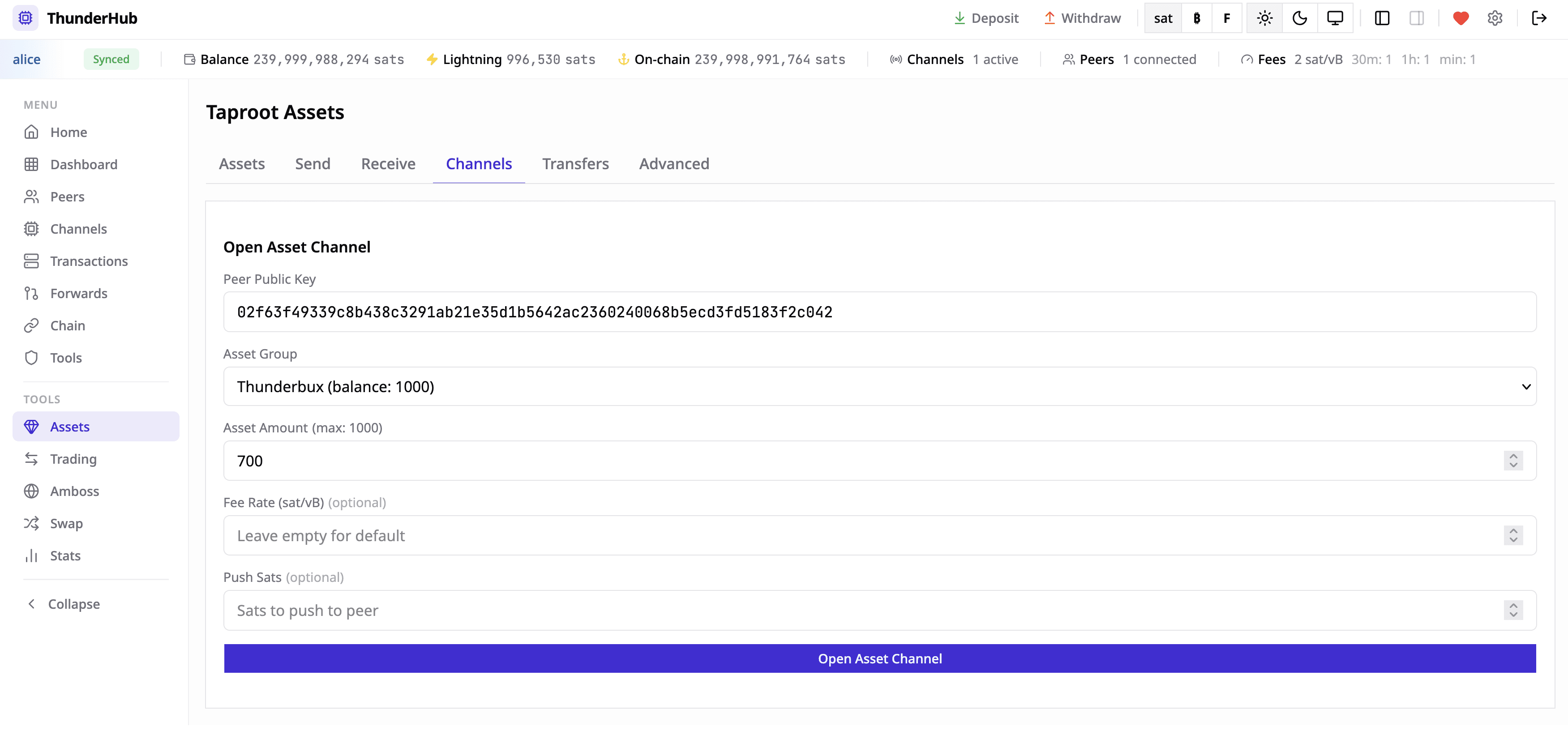
docker compose up -dOpen http://localhost:3000 and log in with the masterPassword from your config file.
Troubleshooting
- Connection refused — Verify your node is running on the Voltage dashboard. Stopped nodes are not reachable.
- Invalid macaroon — Make sure you downloaded a superadmin macaroon, not a read-only or standard admin macaroon. Re-bake from the Macaroon Bakery if needed.
- Wrong server URL — Double-check the node name and network suffix (
.m.for mainnet,.u.for mutinynet). The port must be443. - Taproot Assets not showing — Ensure
type: litdis set in the config. Without it, ThunderHub connects as a standard LND node and Taproot Assets features are hidden. - Volume mount issues — Verify the macaroon file path inside the container matches the
macaroonPathin your config. The Docker volume mount maps your local directory to the container path.